
Solution / Ovation
The Same Player,On Every Screen
On screen
What the viewer gets
Live TV and radio with a guide, recordings and on-demand, signage from Symphony, and a screen that is managed rather than left to its remote.
Feature 01
One interface on every device
Ovation runs on the TV’s own processor, on an IP decoding device behind an ordinary screen, on a Raspberry Pi or Linux PC, and as a desktop client. The interface is the same on all of them, and so are the controls Conductor has over them.
Feature 02
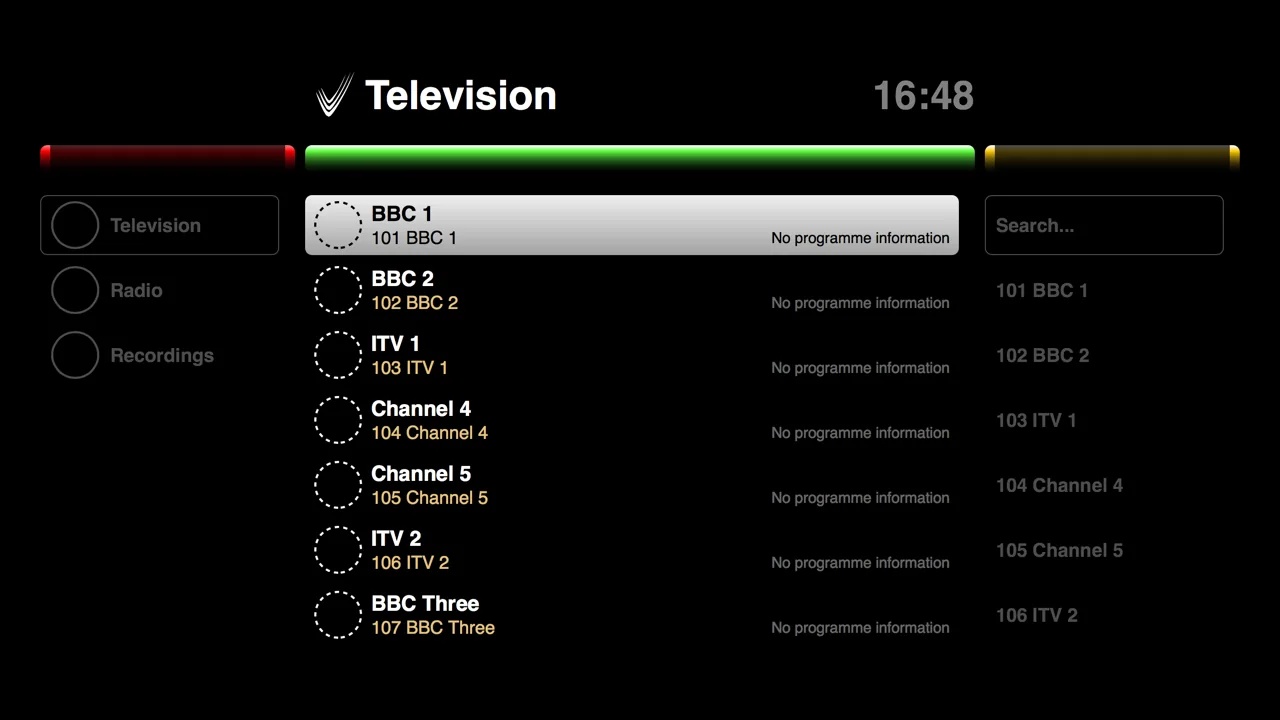
Live channels and the guide
Television and radio channels with a seven-day programme guide, shortcut numbers, and search. A screen only sees the channels whose tags it shares, so a guest-facing screen never lists the staff channels.
Feature 03
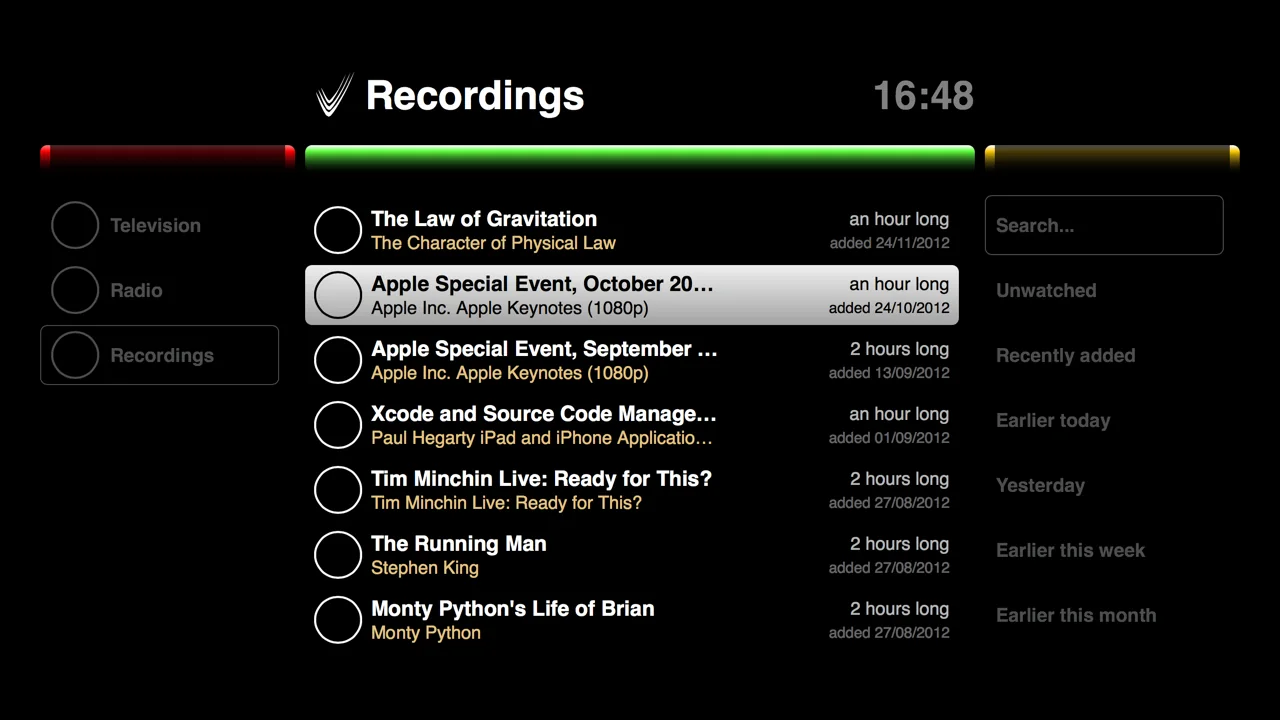
Recordings and on demand
Start a recording from the guide, then find it in the recordings library with search and groupings such as unwatched, recently added and earlier this week. On-demand content is there for anyone whose permissions allow it.
Feature 04
Signage on the same screen
A Symphony layout plays on the same device: a live channel in a video zone, a web page beside it, a sponsor image and a text strip. No separate signage box, and the same schedules switch between TV and signage.
Feature 05
Keeps playing without the internet
Everything runs on the appliances on your own network, so as long as you are on that network you can carry on using the whole system, Conductor included. Live TV from satellite or aerial, files from the local filestore and a camera filming on site are completely unaffected by an internet outage. Only a channel that arrives over the internet depends on it.
Feature 06
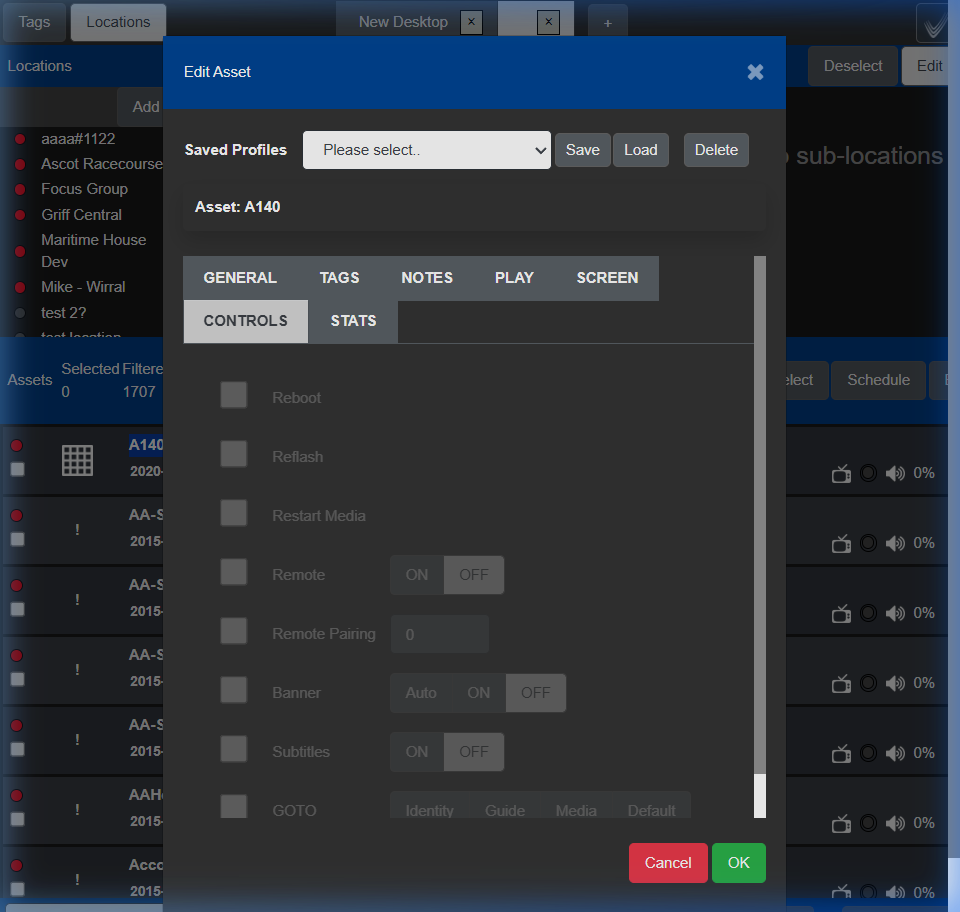
Managed from Conductor
Power, input, volume, a locked remote, the channel banner, subtitles and what to show on power-up are all set from Conductor. The identity screen shows a device’s name, location, IP and MAC in large type, so a room of new TVs can be labelled in one walk-round.
Supported hardware
Hardware-agnostic by design
You do not need every screen from one manufacturer. This is the user guide's own table.
On-chip TVs
IP decoding devices
Players
Ovation Desktop
Encrypted streams
For secure environments Chorus supports AES-encrypted multicast. Only authorised Ovation clients with the key can view those channels; a standard player such as VLC cannot.
No hardware yet?
Image a Raspberry Pi with the Ovation client, or run Ovation Desktop in a browser on any Windows or Mac computer, and you have a working end point to learn on.
In the field
Six screens, six jobs
Deployments described in the user guide.
Hotels
Three properties run from one portal: locations for each hotel, tags for lobby, bar, gym and guest-room screens, and a promotion pushed to every bar screen across all three at once.
Hospitals
Twelve free-to-air channels on every screen; three internal channels only on screens tagged for staff. A new screen just needs the right tag.
Stadiums
The match from the SDI cameras as a live channel with the sponsor’s logo over it, and Encore recording the advertising channel for a 30-day proof-of-play archive.
Transport hubs
Platform screens showing the live departures web page; a cancellation appears within seconds without anyone updating anything.
Shopping centres
Promotional screens at every entrance with the remote locked, so a passer-by with a universal remote cannot change what they show.
Universities
Campus screens scheduled off overnight, and a lecture theatre sent live to another building over SRT and shown there like any other channel.
Put Ovation on a screen you already own
Tell us what TVs and players you have. Most of them will run it as they are.