
Solution / Mobile Control
StreamVue RemoteControl From Your Pocket
A web app for venue staff. Open it on a phone, tablet or desktop browser, see every screen grouped by location, and change channel, volume and power in a tap.
There is nothing to install and nothing to set up on the device. A six-digit code pairs it to your venue for quick or basic access. For full control, staff sign in with the same StreamVue single sign-on they use for the website dashboard, the portal and the apps, with the same privileges in each and every action logged for audit.
In your hand
Pair it, find the screen, change it
Five screens from the app on a phone: two ways in, then the work.
- 01
Pair it once, for quick or basic access
The first time StreamVue Remote opens on a phone or tablet it shows a six-digit code. Someone with access to your StreamVue console types that code in and picks the venue, and the device is paired. Nothing is typed on the device itself, no password and no server address, and the pairing renews itself quietly in the background. Pairing is right for temporary set-ups and basic access: an event weekend, a loan tablet, a bar that only ever changes channels.Activate this device
Open your StreamVue management console and add this device using the activation code below.
Activation code
Waiting for activation…
01 · Pair
- 02
Sign in, for full control
For full control we recommend our single sign-on service. It is the same sign-in staff use for the StreamVue website dashboard, the Chorus portal and the apps, so a person is one account everywhere, with the same privileges following them into each. Every action they take in any of them is logged for audit, and when someone leaves, one change closes every door.Sign in
The same StreamVue sign-in as the dashboard, the portal and the apps.
Work emailContinue with single sign-onSame privileges everywhere · every action logged
02 · Sign in
- 03
Find the screen
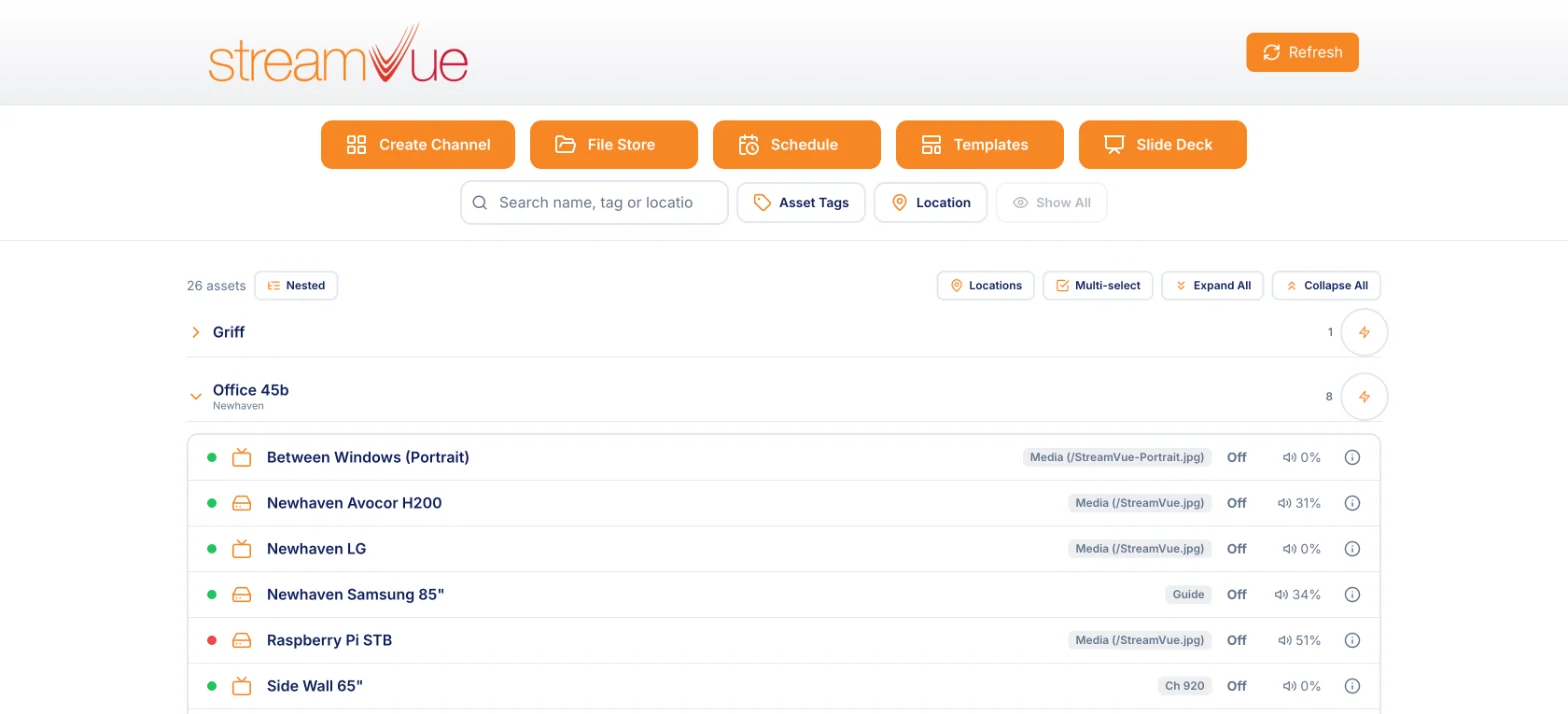
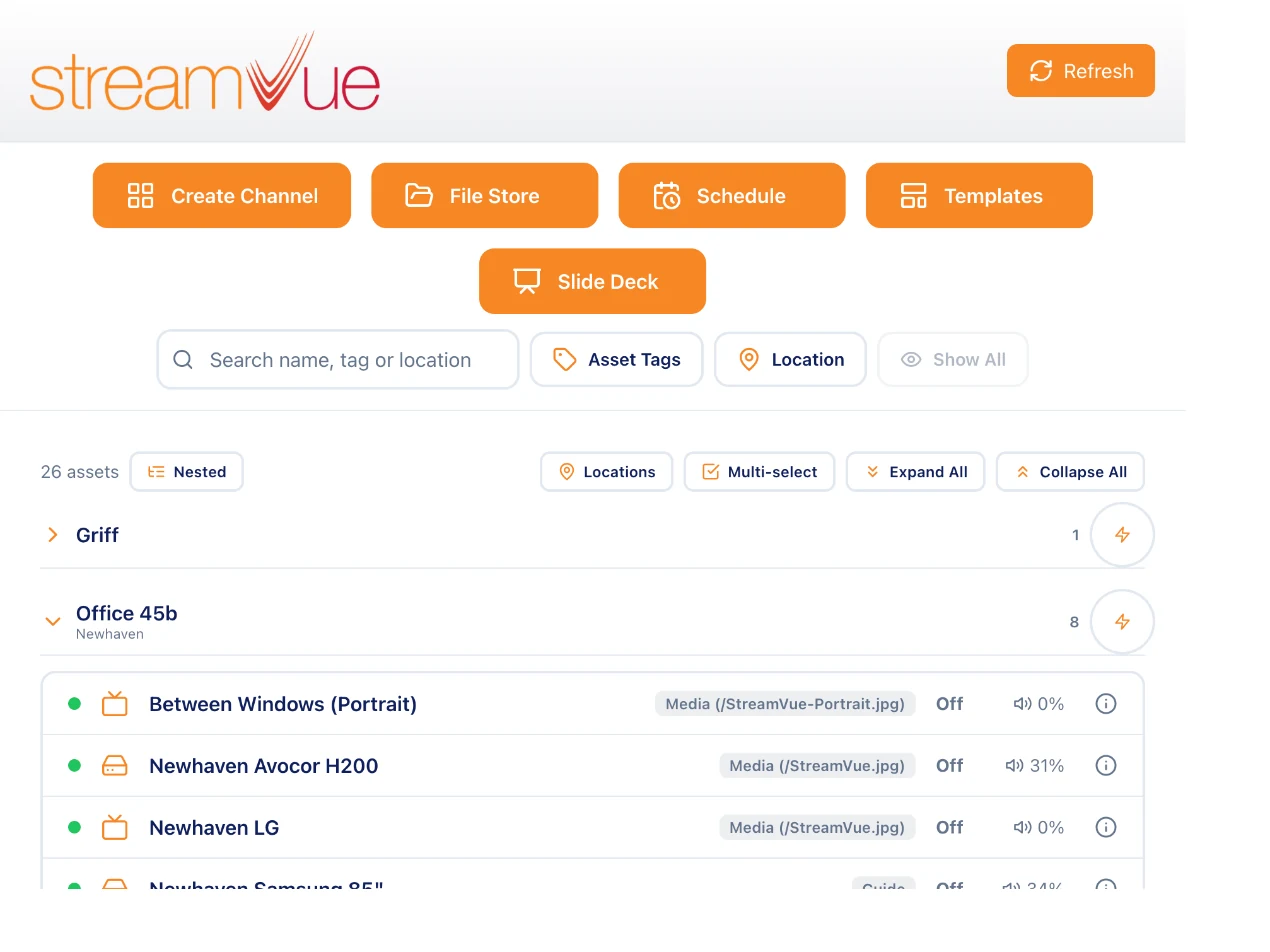
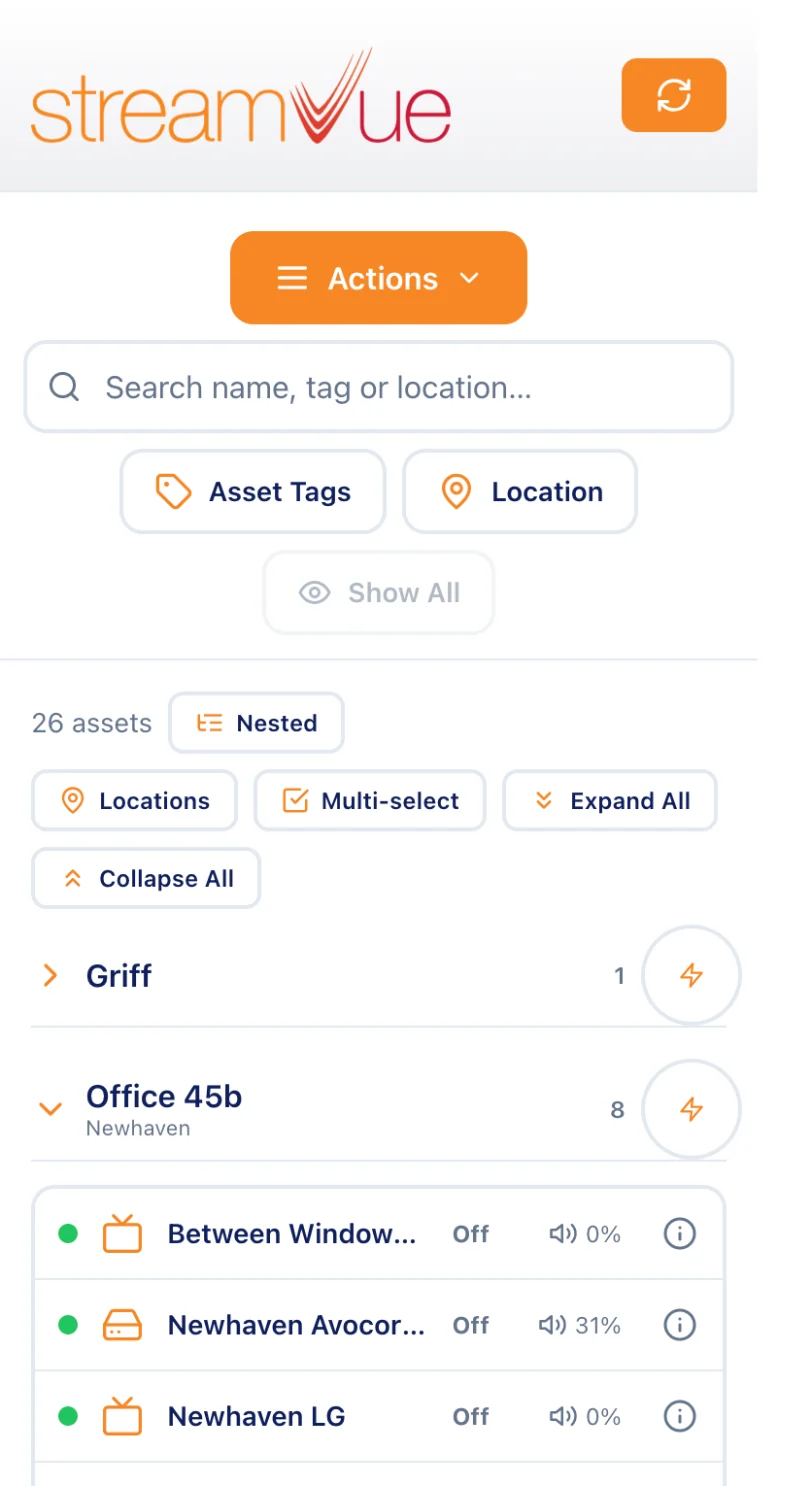
Every screen the venue has allowed appears in one list, grouped by location and nested the way the site is laid out. A green or red dot shows whether it is online, and each row shows its power state and volume. Search by name, tag or location, or narrow the list with the "Asset Tags" and "Location" buttons.03 · Find
- 04
Change what it shows
Tap a screen to open its channel list, complete with channel logos and an A–Z filter. From the same place you can power it on or off, set the volume, mute it, turn subtitles on, decide whether the TV’s own remote is allowed, and move the screen to another location.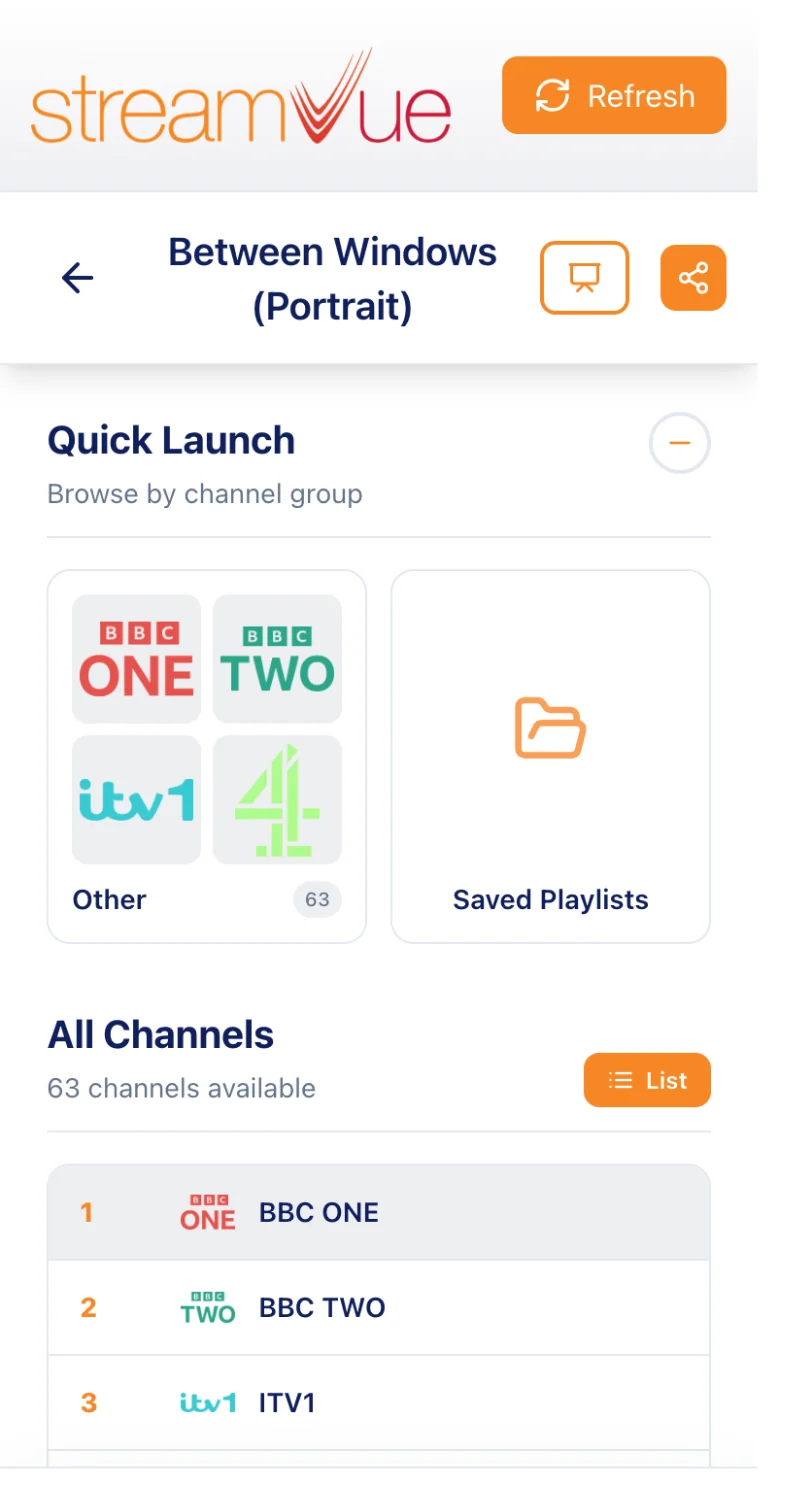
04 · Change
- 05
Do the bigger jobs from "Actions"
The "Actions" menu holds the rest: build a multiview channel from up to four sources, schedule power and channel changes, run a slide deck on a screen, and upload files to the file store.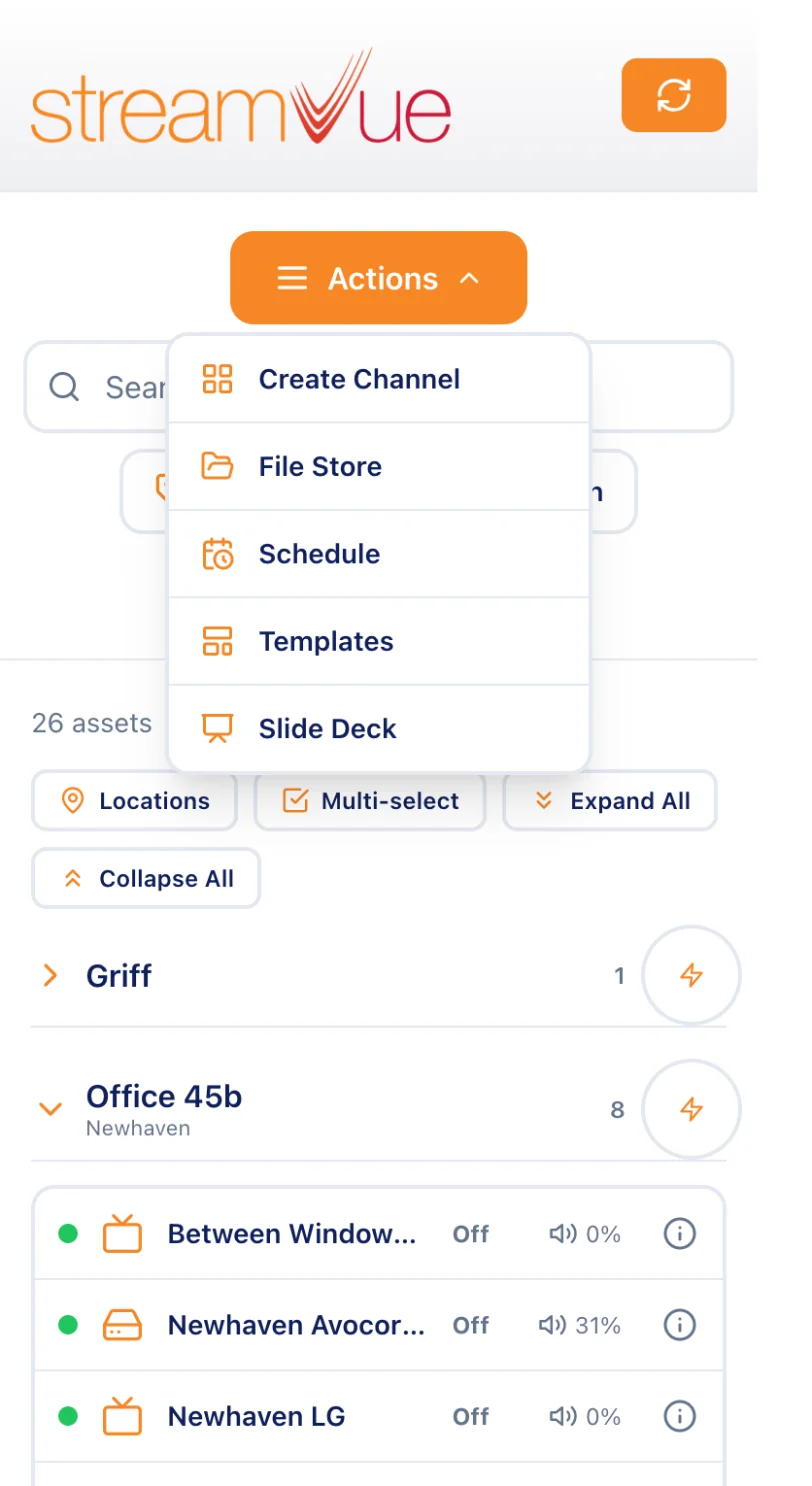
05 · Actions
The actions menu
Three jobs that used to need a desk
Multiview channels, schedules and slide decks, all from the phone.
01 · Create Channel
“Create Channel”
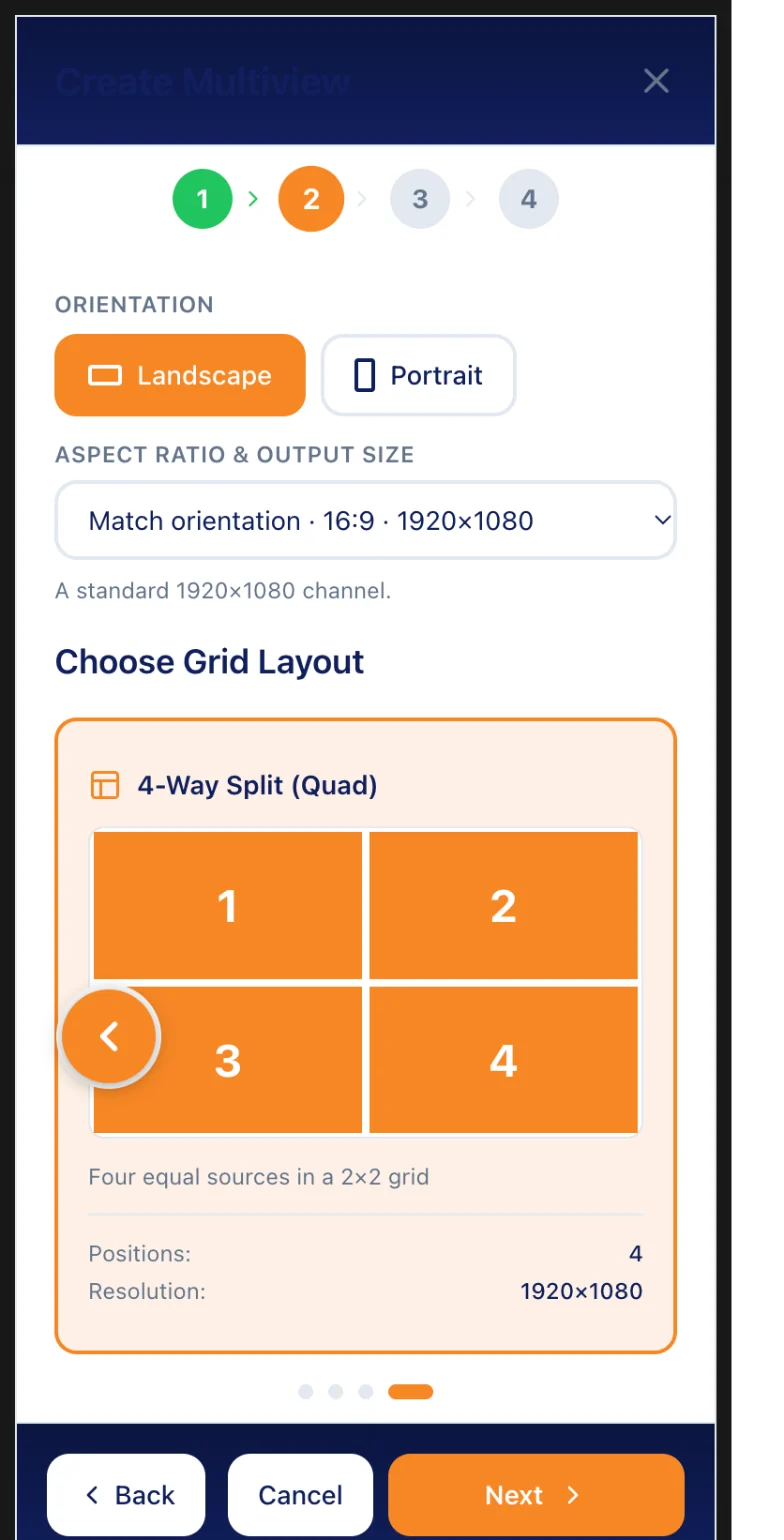
A four-step wizard builds a multiview channel: pick the screen it will be pushed to (or none, to tune to it later), choose single, 2-way, 3-way or quad in landscape or portrait at the output size you need, add a channel or a file to each position, then name it. A logo can be overlaid in any corner.
02 · Schedule
“Schedule”
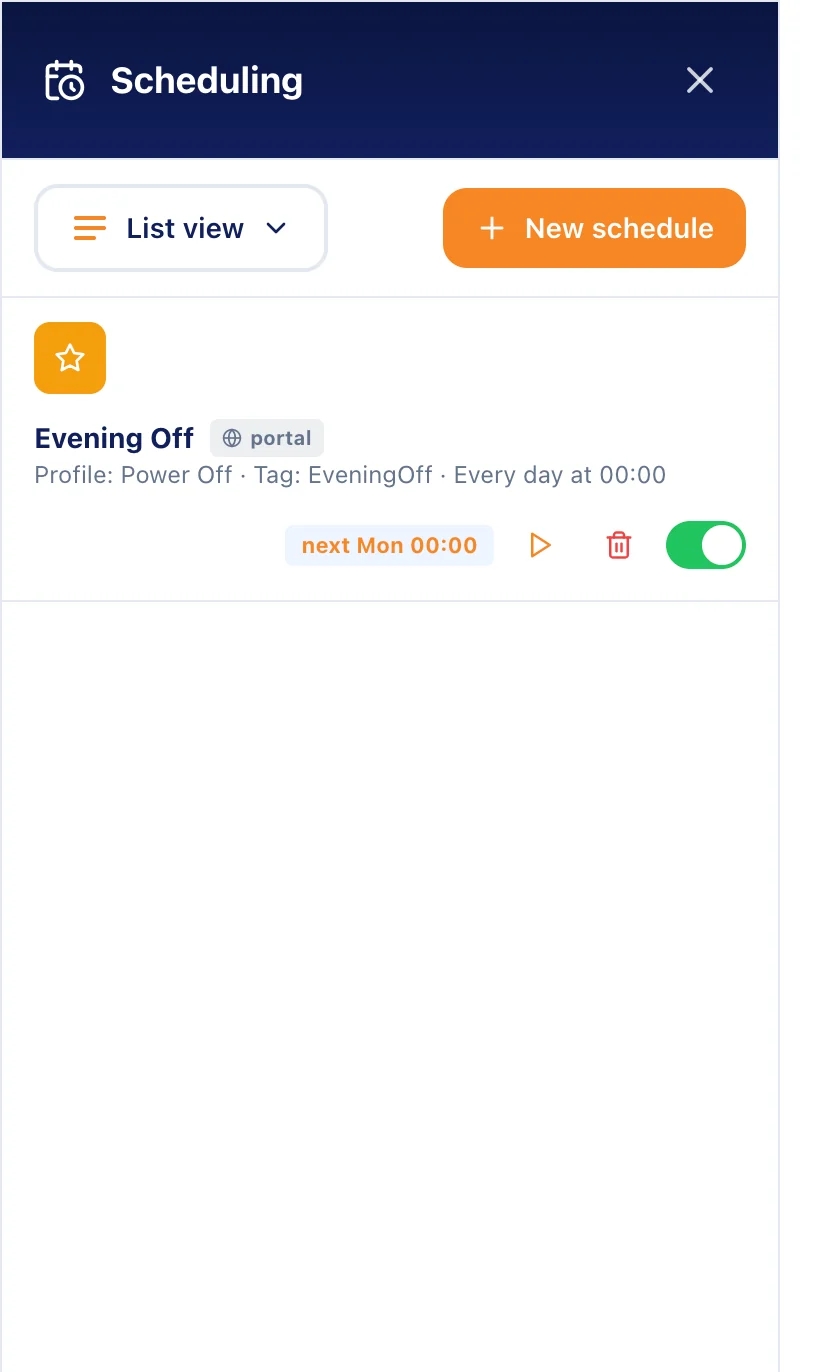
Rules that turn screens on or off, change channel or run a saved profile: once, daily, or on the days you pick, with a time for each. A rule can target every screen, a tag, or a hand-picked set, and you can run it now to check it. List, day and week views show what is coming.
03 · Slide Deck
“Slide Deck”
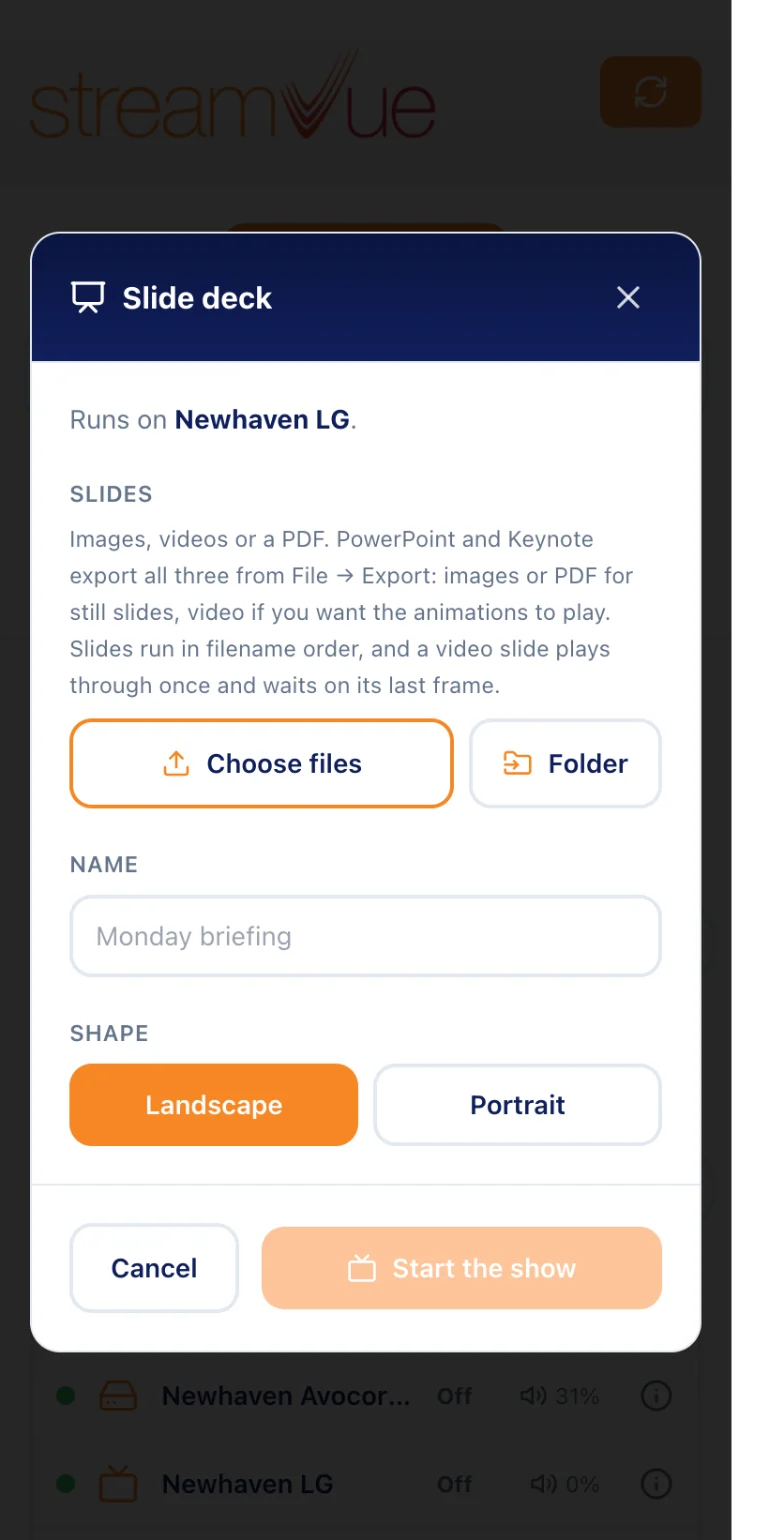
Choose a screen and pick the slides: images, videos or a PDF exported straight from PowerPoint or Keynote. Name the deck and start the show. Slides run in filename order and are stepped from the phone; a video slide plays once and holds its last frame. When the show ends the screen goes back to what it was showing.
What it can do
Everything in the app
The controls staff actually get, grouped the way the app presents them.
Find screens
Control one screen
Control many at once
Bigger jobs
Any device
One web address, three sizes
The same app adapts to whatever it is opened on.
Open the link in Safari or Chrome and add it to the home screen
Needs: A current mobile browser
Nothing to install
A larger layout for a wall tablet or a manager on the floor
Needs: A current tablet browser, any make
Nothing to install
The same app in a desktop browser, where the grid gains columns
Needs: Chrome, Edge, Firefox or Safari
Nothing to install
By design
Small numbers that matter
How the app is built, in four figures.
A link, not an app store
Staff open a web address. Updates reach every device the next time the app is opened.
One activation code
Pairs a device to its venue from the StreamVue console for quick or basic access. For full control, staff sign in: one account across dashboard, portal and apps, every action logged.
The largest multiview
Single, 2-way, 3-way or quad layouts, in landscape or portrait, built from the phone.
Every venue, one app
Branding and permissions come from a settings file, so every venue gets every improvement.
Why it matters on the floor
Less walking, fewer remotes
- 01Walk the floor and fix a screen where you stand
- 02Staff need the web address and nothing else
- 03A device only sees the screens and channels its venue allows
- 04Retune a whole bar in one go rather than screen by screen
- 05Routine power and channel changes run on a schedule
- 06Nothing to update on the device: open it and it is current
On a shift
How a venue uses it
Three everyday jobs, done from a phone.
Job 01
Matchday on the concourse
A duty manager walking the concourse retunes the bar screens from a phone: multi-select the bar, pick the channel once, and every selected screen changes together. A red dot on the list shows the one screen that has dropped offline before anyone complains.
The whole-location quick menu does the same for a complete area: all on, all off, mute, or one channel for the lot.
One pass of the concourse, not one trip per screen
Job 02
A briefing in the suite
A host exports the welcome deck from PowerPoint, opens "Slide Deck", picks the suite’s screen and steps through the slides from the phone. When the show ends the screen returns to what it was showing.
Video slides are allowed too, so an animated deck exported to video still steps slide by slide.
No laptop, no cable, no fiddling with inputs
Job 03
Close of play
A schedule turns every screen tagged "Bowl" off at 23:00 and on again before the gates open, every day, with no one on site. A second rule switches the concourse screens to the information channel for the last hour.
Rules can run once, daily or on chosen days, and "run now" checks one before the day it matters.
Routine changes happen without a person
Kept in check
What the venue decides
A phone in a bar is not a desk in an office. The app is built so a venue hands out exactly as much control as it means to, and to exactly the people it means to.
Paired from your console, for quick or basic access
A device shows a six-digit code until someone with console access pairs it and chooses its venue. The app never picks a server, the pairing is a short-lived token renewed in the background, and a device can be un-paired again from a PIN-protected admin menu. Right for temporary set-ups and basic access.
Signed in, for full control
Our single sign-on service gives a person one sign-in for the StreamVue website dashboard, the Chorus portal and the apps. The same privileges follow them into each, every action they take in any of them is logged for audit, and when someone leaves, one change closes every door. It is what we recommend for anyone who needs full control.
Only the screens you allow
Asset tags decide which screens appear in the app and channel tags decide which channels can be chosen. A screen without the tag is simply not there.
Only the controls you allow
Volume, power and multiview can each be switched off for a venue, and switched-off buttons can be hidden or greyed out.
Put the screens in your staff’s pockets
StreamVue Remote works with any Chorus-managed venue. Ask for a demo on your own screens, or for a branded edition in your venue’s colours.