
Solution / Conductor
Every Screen,One Command Centre
The main view
Three zones and a list
Locations on the left, tags on the right, and every screen that matches in the middle.
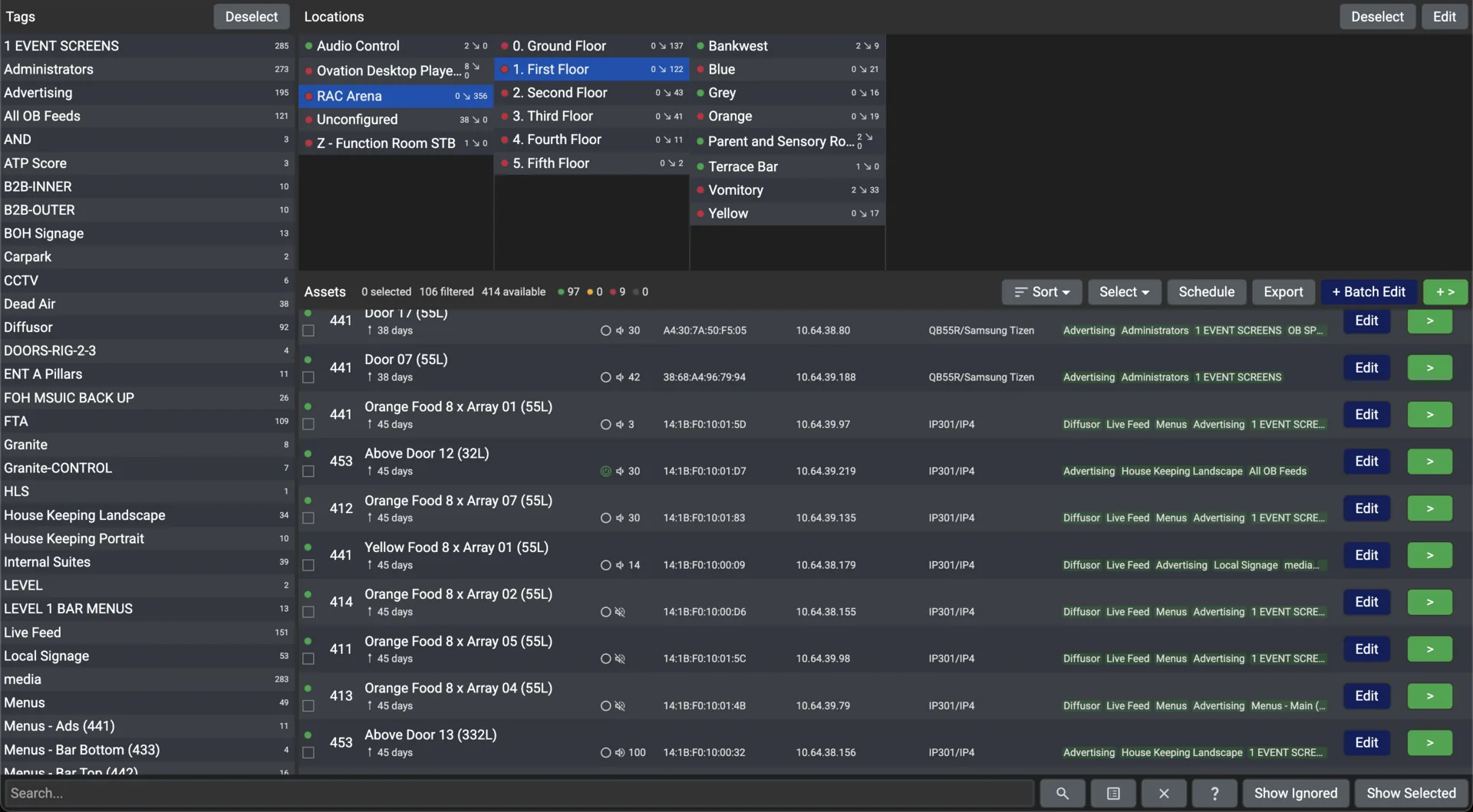
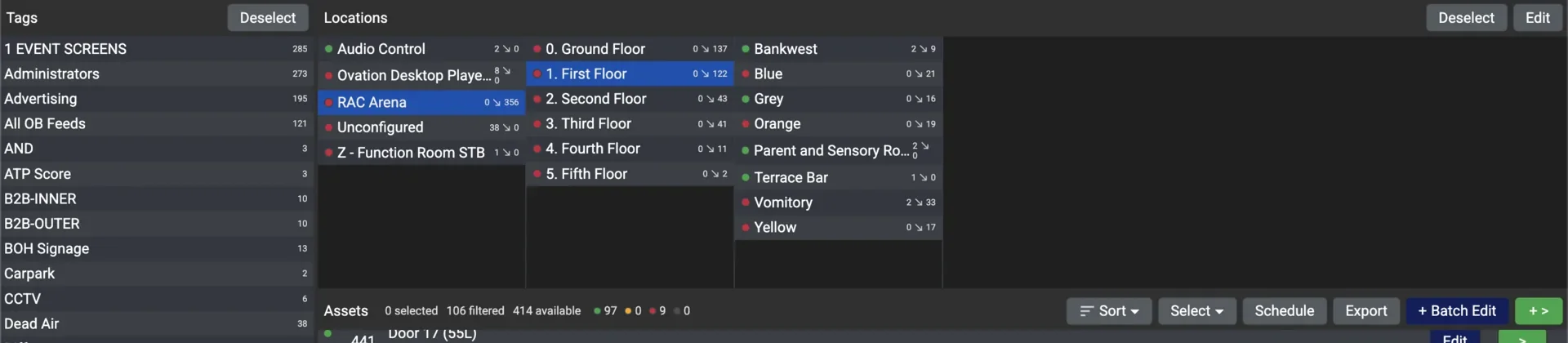
- Left: locations
- A tree that mirrors the site, to any depth: campus, building, floor, room. Click a location and the list shows only the screens in it.
- Right: tags
- Labels for what a screen does rather than where it is, so “Bar Area” finds every bar screen on every floor. The same tags decide which channels a screen’s guide offers.
- Centre: the list
- One row per device: a green or red dot for online or offline, its name, IP address, what it is showing right now, and when it was last seen. Double-click a row to open its Edit Asset window.
Screen missing from the list? A location or tag filter is still active. Open the panel and deselect it.
One screen
The Edit Asset window
Double-click any screen and seven tabs cover everything about it. Pick a tab to see the real window.
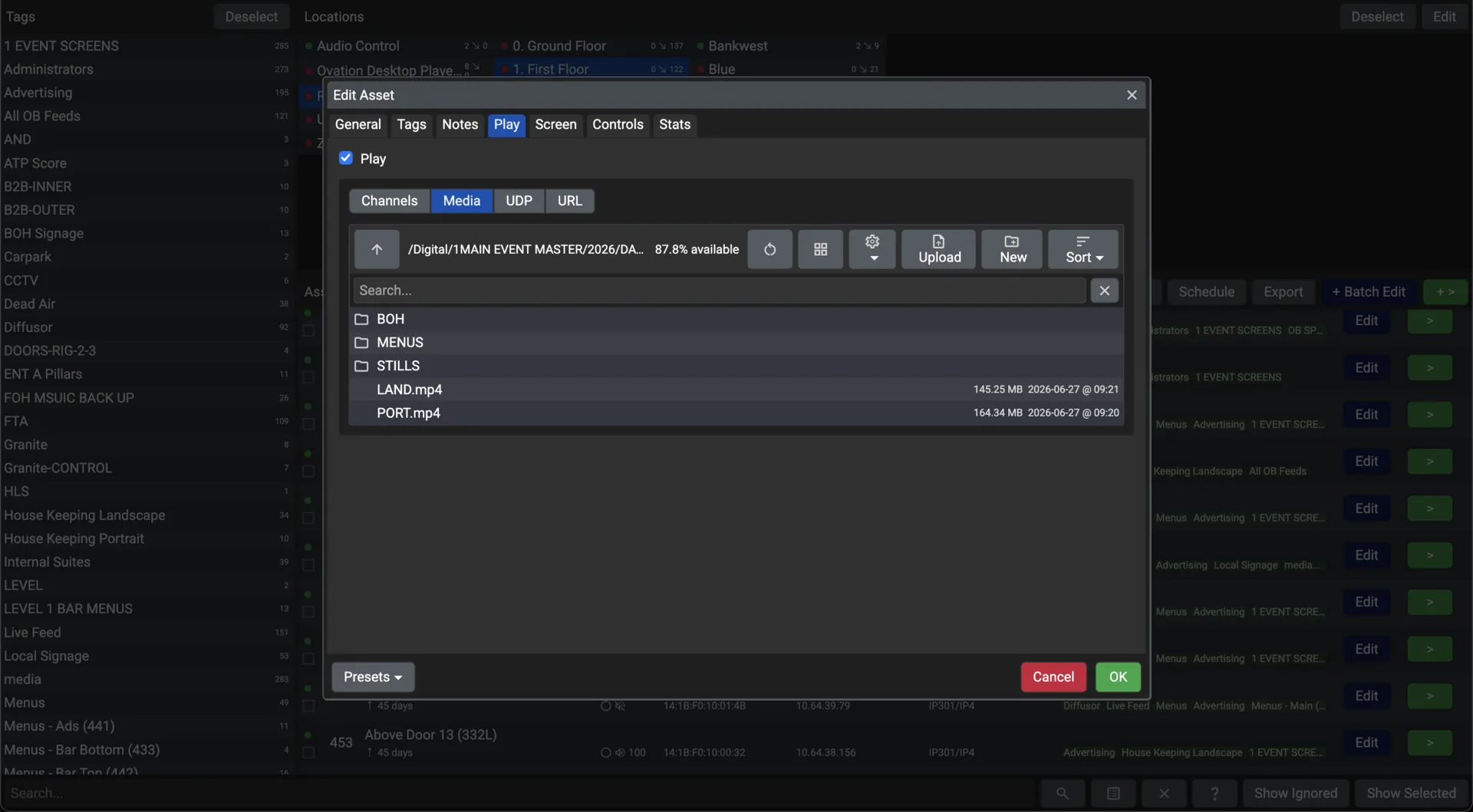
Tab 02 of 7
“Play”
What it shows
- "Channel": any live network channel, the most efficient choice for large deployments
- "Media": a video or image from the Filestore, or drag a file in to upload it on the spot
- "URL": any web page rendered live, from a departures board to a dashboard or a menu
- Changes take effect in about a quarter of a second over a live WebSocket connection
The broadcast day
Set it once, it runs for good
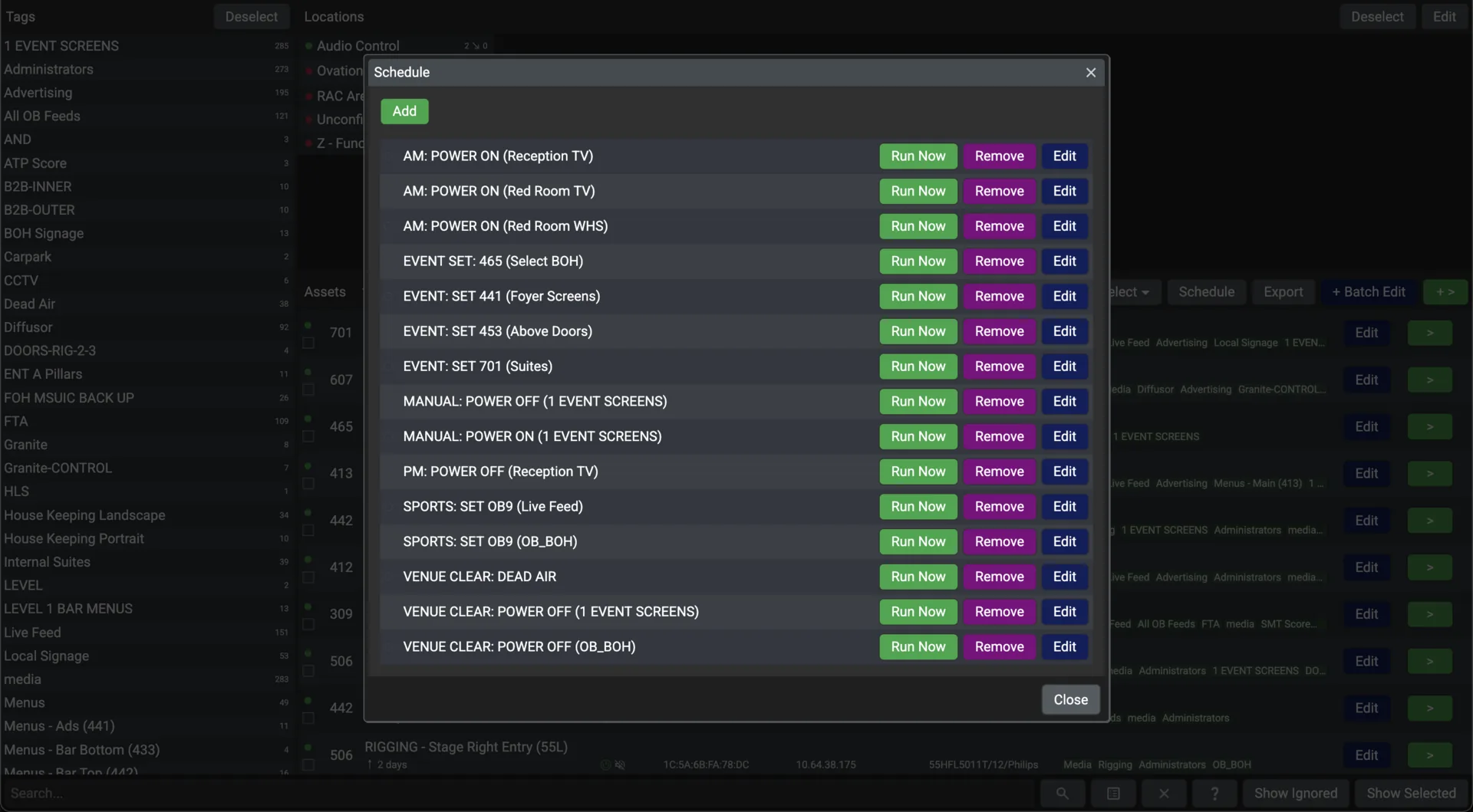
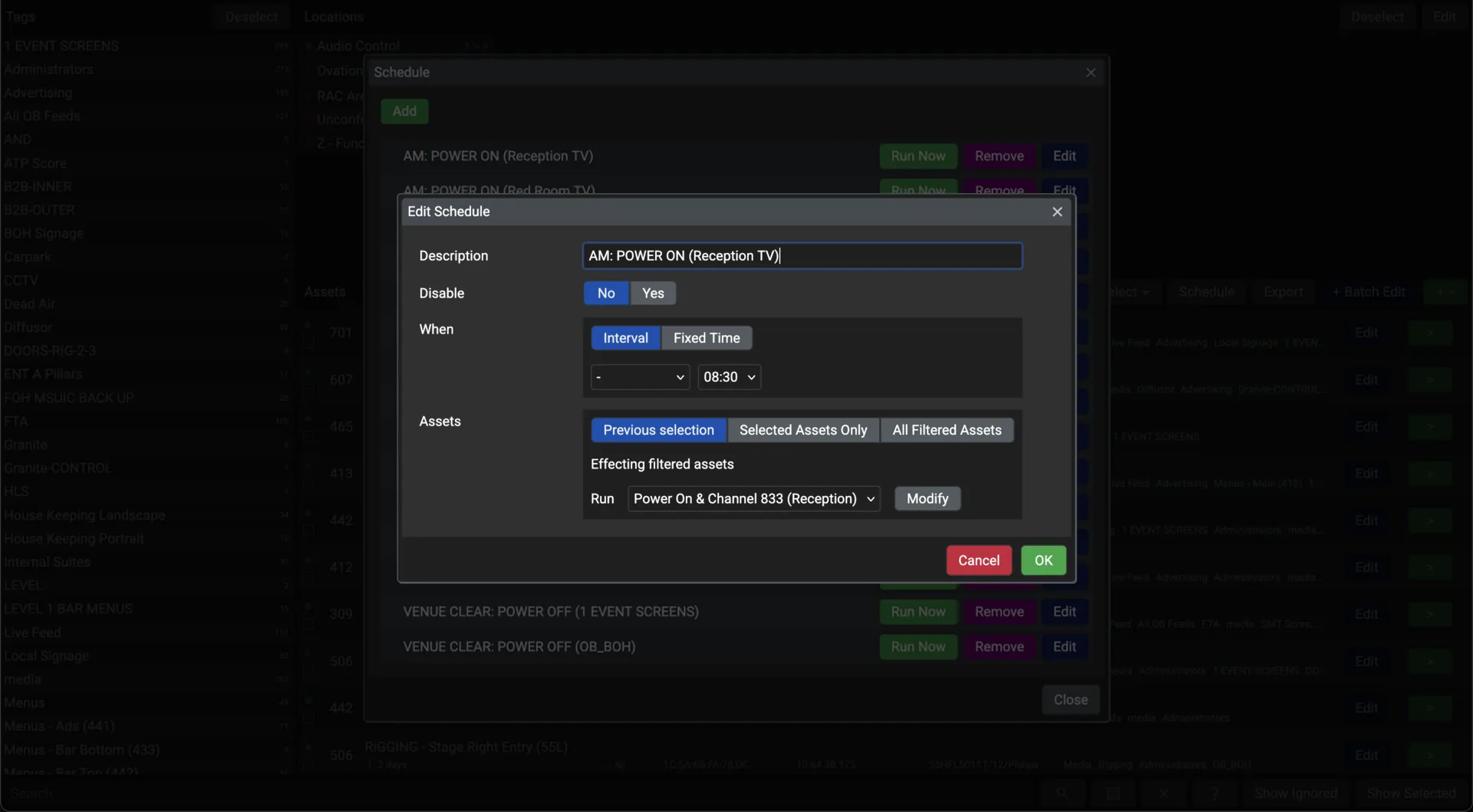
A schedule runs a saved profile at a time: once, daily, weekly or on the days you choose. These five are the user guide's own examples.
- 07:00
Morning Power Up
Mon–Fri
Profile: Power On + Channel 101
- 08:00
Weekend Mode
Sat–Sun
Profile: Power On + "Weekend" playlist
- 12:00
Lunch Signage
Daily
Profile: Switch to the "Lunch Menu" playlist
- 13:30
Afternoon Return
Daily
Profile: Switch back to Channel 101
- 22:00
Evening Power Off
Daily
Profile: Power Off all screens
Worked example from the user guide
A campus of 150 screens, scheduled off overnight
Screens left running around the clock, against the same screens scheduled to run 16 hours a day. The guide assumes a 150 W display and electricity at £0.28 per kWh.
- Running 24/7
- £55,188
- a year in electricity
- Scheduled 16 h
- £36,792
- a year in electricity
- Saved
- £18,396
- plus the 104 hours a year someone spent switching them on
Work faster
Five things that save minutes every day
Saved views, saved settings, one command for many screens, and a record of all of it.
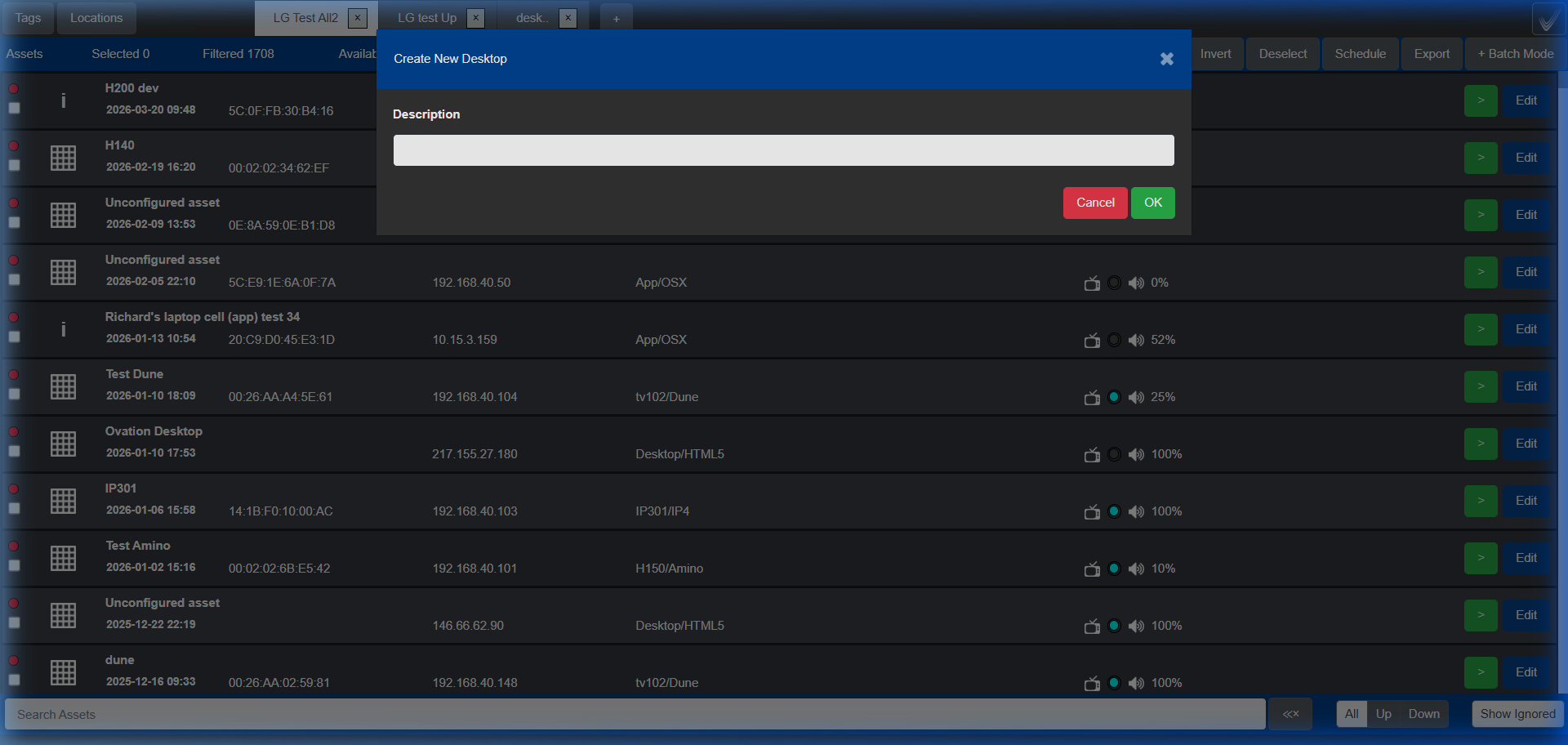
Workspaces
A saved view of Conductor with a set of tag and location filters already applied. Each one is a tab along the top, so "Bar Screens, All Sites" or "Manchester" is one click away and you never change the wrong screen by losing track of a filter.
Profiles and shortcuts
Save a combination of settings, such as "Power On + Channel 101", as a named profile and apply it in one click. Pin a profile to a screen’s row as a shortcut and it becomes a green button on the list. Profiles are also what schedules run.
Batch mode
Filter to the screens you want, tick them or "Select All", then "Batch Mode" sends one profile to every selected screen at once. Forty auditorium screens switch to the lunch slide in a single click.
Search
The "Search Assets" bar at the bottom of the list filters by screen name or IP address as you type.
Event log and reports
Conductor keeps a full event log and system usage statistics, exportable in standard formats: the record that a screen was live and showing the agreed content at the agreed time.
Run order
From a new box to an automated estate
The order the user guide teaches it in.
- Cue 01
Activate
A new device shows a six-digit code on screen. Enter it in the Activation module, give the device a name and a location, and it appears in Conductor.
- Cue 02
Organise
Build the location tree to match the site and tag screens by what they do. Save the views you use every day as workspaces.
- Cue 03
Control
Double-click a screen to open the Edit Asset window, or select many and use batch mode. Lock remotes on public screens and send the identity screen to label a new install.
- Cue 04
Automate
Save profiles and schedule them: once, daily, weekly or on chosen days. Anything Conductor does, the Chorus REST API can do too, so a fire-alarm panel or a room-booking tablet can drive the same screens.
24:00 · Sign-off
See Conductor on your own screens
Conductor is one module of the Chorus portal. Ask for a demo and we will walk through it with your floor plan and your channel list.